Video Tutorial: CSS Design, Part Two
Applying graphics with CSS
In the conclusion of our two-part video tutorial on CSS layout and design, we will take the layout we created in the beginning of this tutorial and begin to apply graphics and other visual stylings to it, in order to achieve the look we are going for.
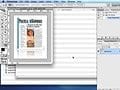
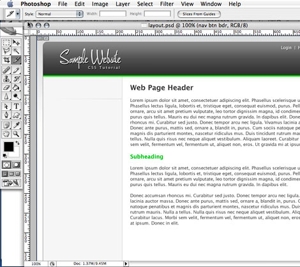
In Part Two, we will be looking at how to identify the basic graphic elements we need. From slicing the images out of our original Photoshop document to optimizing the images in Photoshop to applying the images correctly to our page, we do it all in this tutorial.
We start by breaking our Photoshop document down into the basic graphic elements we need to achieve our design goals, and then proceed to optimize each graphic element. Once created, we apply graphics to our page using a variety of CSS techniques that can be intimidating to designers. By the end of this tutorial, we will have quickly made a basic web page using HTML and CSS that almost exactly matches our original Photoshop document.
Please feel free to download and review the additional files provided below.
Software Used: Adobe Photoshop CS2, TextMate
Additional Files: CSS_layout.zip
This video tutorial requires Flash Player version 8 or above. Please forward us your ideas for additional video tutorials, via our Contact Us form.
Sponsored links
- Pod1 – Design, Ecommerce, Online Marketing
30 Comments
Legacy User says:
Thanks for this very useful tutorial. The presentation was clear and easy to understand. Your step by step process made it very easy to follow along and build my own sample CSS page. I plan to implement what I learned today into my own sites. Thanks again.
-- David
Legacy User says:
This tutorial was a great help. I knew how to do, but not as good when it come to SEO and this tutorial taught me that. I hope in future to see more of these tutorials. Thanks.
-- akram
Legacy User says:
It was very easy to learn and understand how to create webpages in Photoshop. This tutorial encouraged me to implement CSS Design in my website with confidence.
-- Rejane
Legacy User says:
Oooh yyyyyyyyyyyyyyess!! Part two alreaddy is there =]. It really helped me man tnks!
-- Elec
Legacy User says:
This was the first time I looked at your video tutorials. These tutorials are fantastic! Brian is a great teacher and look forward to more of these!
-- mql
Legacy User says:
Wow, loved this tutorial, both parts, plus the Rounded Corner one. So glad I found this site.
Already hit the RSS feed, so I can keep in touch!
-- Annie
Legacy User says:
Interesting, it seems to render and work just fine for me on FireFox 2.0.0.1 working on Mac OS 10.4.10. I'm wonder if there are issues on an earlier version or on one for another platform. I've tested in Firefox, Safari, Camino, and IE so far, and it appears to work well for me.
If you are having problems, can you email me a screenshot? Thanks. bgetting[at]practicalecommerce[dot]com
-- Brian Getting
Legacy User says:
Thank you so much Brian. This was an awesome, A+ break-down (I'm use to formatting w/ tables, but feel eager to try css layout instead). Do you have a website w/ more video tutorials?
-- Kate
Legacy User says:
Great tutorial. You have a nice easy way of explaining the topic. The video was very easy to follow. Have you considered making a series of training videos that offer more css tips?
-- Tony
Legacy User says:
Excellent Job! Thank you, your presentation was clear and easy to understand, thanks you once again.
-- john
Legacy User says:
Hi, Brian About your tutorial . . .
Is it possible to use it as a template to create a site to myself ? Also, why are the fonts become so big at IE browser ? Thanks, gil
-- gil
Legacy User says:
Using the information in this tutorial, you could build a template rather easily.
The reason that IE displays larger fonts is two-fold. The first is that you need to use slightly larger fonts on Windows browsers because Windows is not very good at rendering fonts. Even native applications display choppy, non anti-aliased text so it is a good idea not to go too small with the fonts on Windows. The second reason is that most Windows users do not have the font "Lucida Grande", which is the font that I use. The secondary font in the font-set is Tahoma, which is a Windows font. It is a larger font, and when Windows defaults back to Tahoma you see the differences that you see.
-- Brian Getting
Legacy User says:
Hi, Brian Tks for the quick reply, I implemented some modifications based on your post, look the sample I did at the link : http://www.sandranunes.com/template/index.html gil
-- gil
Legacy User says:
You just blew my mind! I still feel like nobody knows how to do this stuff - haha. Every time I do the search about replacing table-layout sites with CSS layouts, I hear, "yes, better, great!" but the only examples I found off the bat were always extremely plain, simple column variations. This kind of detail starting with psd graphics is ideal! bravo.
-- Brian B
Legacy User says:
I'm a newbie in web design, and this tutorial cleared some things up about html and css. It's not hard as it looks, thanks to you. Keep up the good work!
Greetings from Croatia! :)
-- dama
Legacy User says:
Thankyou Brian for these clear and concise tutorials. This is the only tutorial I have been able to follow and understand without feeling at a loss.
I have always used psd to tables in the past and I am glad I can convert to the css side.
Best wishes
Gavin
-- Gavin Richmond
Legacy User says:
Thankyou Brian for these clear and concise tutorials. This is the only tutorial I have been able to follow and understand without feeling at a loss.
I have always used psd to tables in the past and I am glad I can convert to the css side.
Best wishes
Gavin
-- Gavin Richmond
Legacy User says:
This is so great. I've had some things in my head that I didn't know how to implement for my web design class. I appreciate your help very much.
-- John Henry
Legacy User says:
Absolutely great!!! Thank you! It wasn't too fast paced! It was perfect for learning the basic overview yet not getting hung up on the little things!!! 5 stars!!!!!!
-- Jordan P
Rob says:
Great tutorial. Thank you for explaining css design! One question: aren't you fooling search engines with making the text invisible? Couldn't this be seen by search engines as a technique that could be exploited?
Rushabh Vasa says:
Very good tutorial. great idea. But I have heard that now the Bots or web crawlers have become smart enough so that they identify the hidden/invisible text and it affects ranking in negative way.. isn't that true?