


Google’s new “Generative AI” section in Search Console is now widely available.
Per the Google Search Central blog, the section (at Performance > Search Results > Generative AI) reports on a page’s visibility in AI Overviews and AI Mode, as well as genAI features in Discover.
The section includes:
- URLs with impressions in Google’s AI answers,
- Number of impressions for each URL within a set period,
- Searchers’ countries and devices by URL.
Unfortunately, the section provides no filters to identify which search feature produced which impressions.
What’s an impression?
The section’s sole metric is impressions, but there’s no definition of that term. Google’s John Mueller says an impression (i) is when a URL appears anywhere in an AI answer and (ii) requires no action.
Thus an impression does not, evidently, mean a human viewed it.
For example, AI Overviews requires clicking both the “Show more” and “Show all” buttons to see all citations. Yet those URLs will count as impressions whether or not a searcher sees them.
“Show more” opens the full answer:
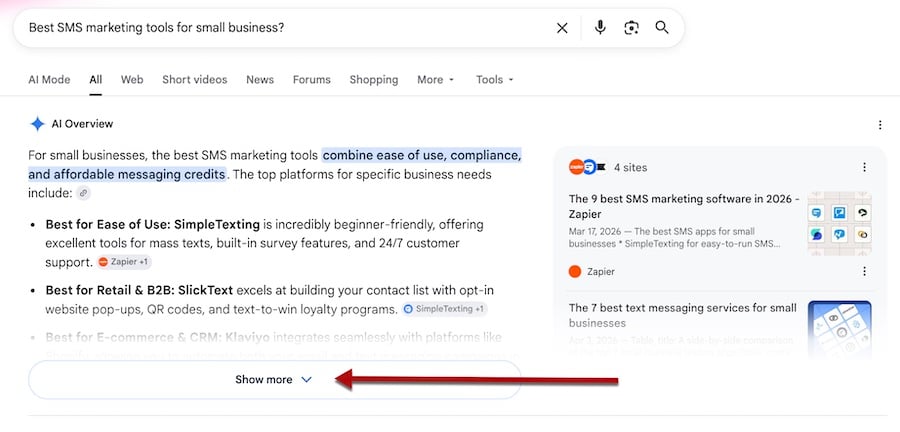
In AI Overviews, URLs that appear after clicking “Show more” count as impressions. Click image to enlarge.
“Show all” opens the full set of cited sources:
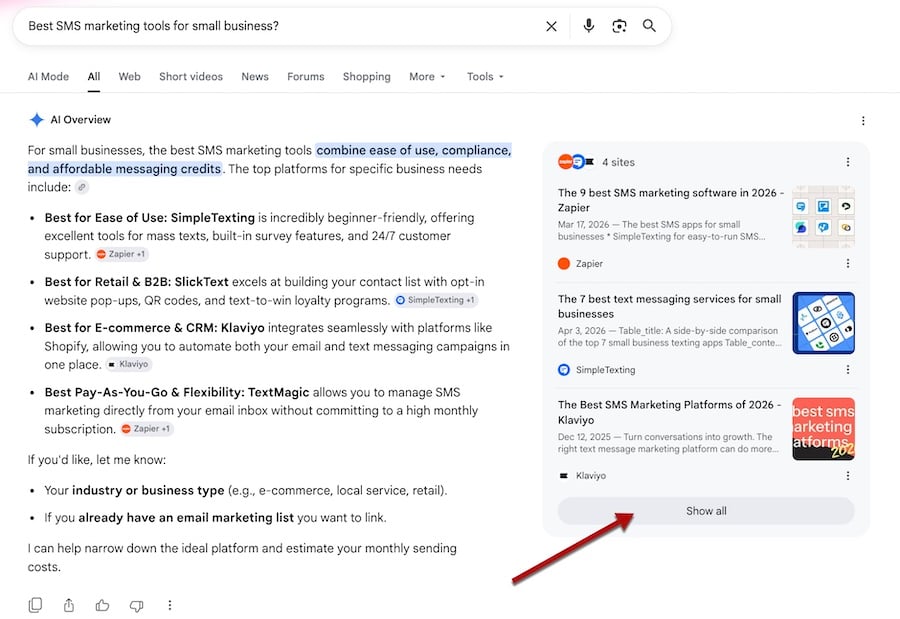
Clicking the “Show all” link reveals all cited sources and includes them as impressions in Search Console. Click image to enlarge.
Some AI answers in Google search require an additional click. For example, “People also ask” boxes do not produce answers without clicking on a question. In that case, presumably Search Console counts an impression only after the click for cited URLs, visible or not.
If the searcher asks a follow-up question in AI Mode, the cited URLs will likely count as impressions, even if included in the previous answer.
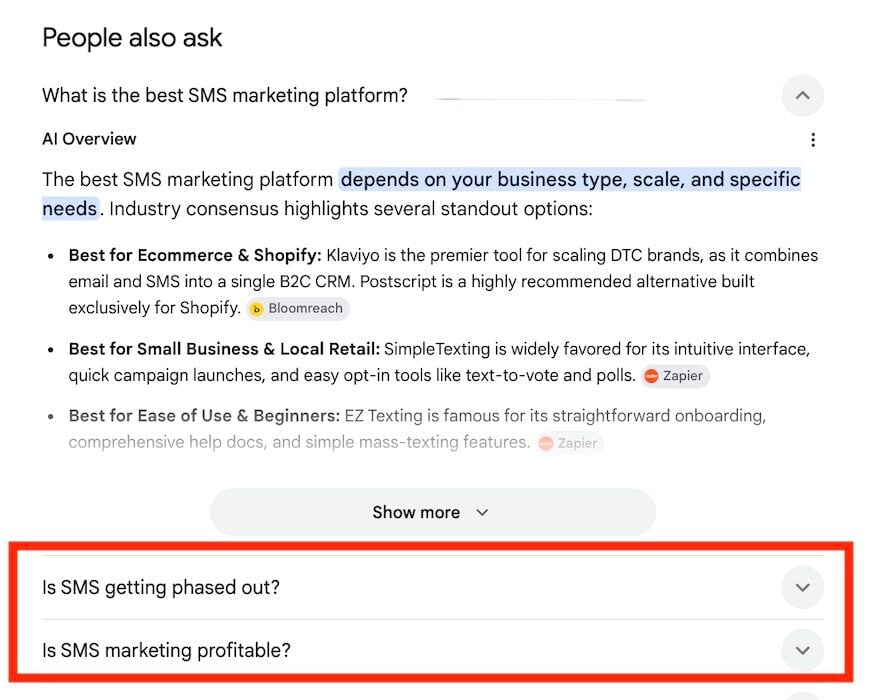
“People also ask” boxes do not produce answers (or impressions) without clicking on a question. Click image to enlarge.
How to use
Search Console’s new Generative AI report shows no click-through data and provides no feature-specific filters. To make it actionable:
- Download the top-traffic URLs in Performance > Search Results,
- Download the top-impression URLs from the “Generative AI” section,
- Combine the two in Excel.
The Excel spreadsheet reveals:
- High-traffic URLs with little or no AI visibility. Try to optimize these pages for AI answers with better structure and clearer solutions.
- URLs with strong impressions in genAI answers but limited traffic. Improve traditional search rankings by updating the pages or linking to them internally (or both).
Blocking AI
Concurrent with the “Generative AI” rollout, Search Console now allows sites to block content and URLs in AI answers.
The new feature (Settings > AI controls > Search generative AI) defaults to allowing those items. A separate toggle, when clicked, blocks them, although I know of no reason for ecommerce businesses to do that.




 AI Shopping Could Mean Fewer Returns
 New Ecommerce Tools: September 23, 2026
 Test Your Products for AI Discovery
 Shopify Opens to Meta Muse; Amazon Balks
 New Ecommerce Tools: September 30, 2026
 Don’t Make Them Count